All installations of Uranium Fever come with a complementary Updating Utility, custom made for the pack.
This is the recommended method for updating Uranium Fever, as opposed to completely reinstalling the pack or manually replacing the relevant folders.
A guide for updating manually is still included for those distrustful of unvetted executables1See “Reflections on Trusting Trust” by Ken Thompson for more information or running Uranium Fever an operating system other than Microsoft Windows.
Start by downloading the latest version of the pack from the Downloads page.
Then, choose your method:
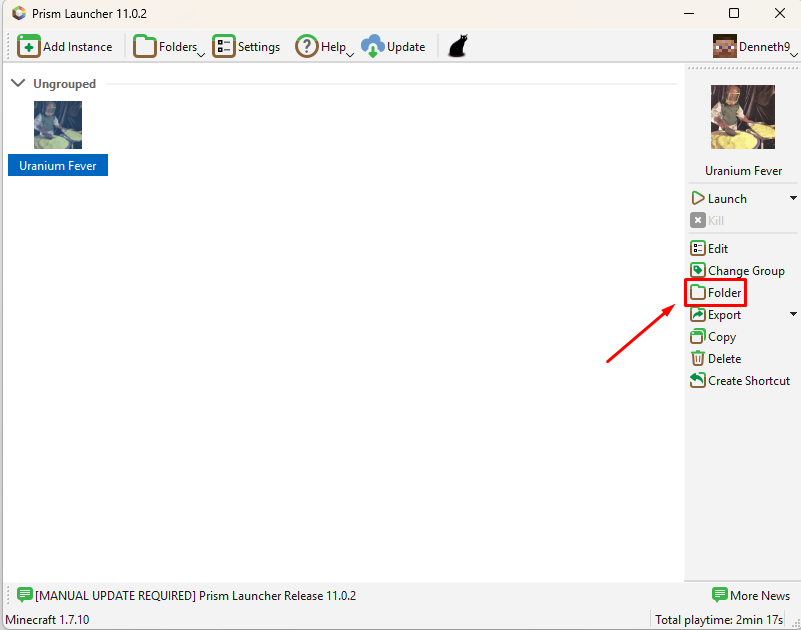
First, click the “Folder” button.
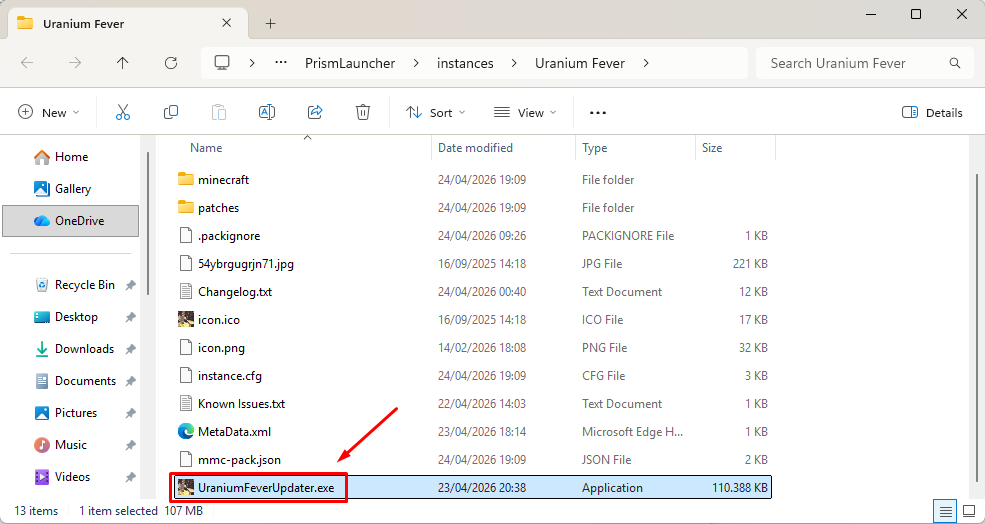
Then, open UraniumFeverUpdater.
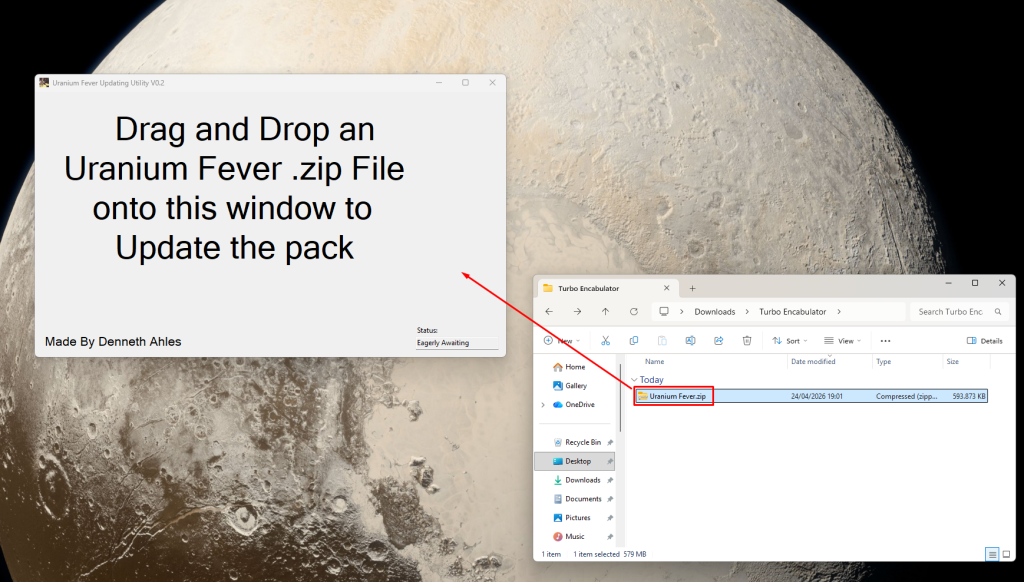
Now click, drag, and drop the downloaded Uranium Fever Pack Instance onto the Updating Utility.
The following window will appear.
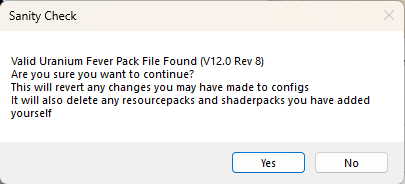
If you are okay with these terms, press “Yes” to continue.
Once the program is finished, the following should pop up.
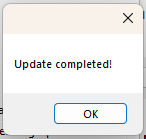
You can now safely exit the program, and delete the pack .zip file downloaded previously.
If anything went wrong during this process, feel free to contact me, and / or attempt to update manually using the section below.
(This guide assumes you are using the Microsoft Windows operating system. If using an alternative operating system, simply replace the folders mentioned below using the method best suited to your machine)
First extract the downloaded .zip file (I recommend 7-Zip for this purpose)
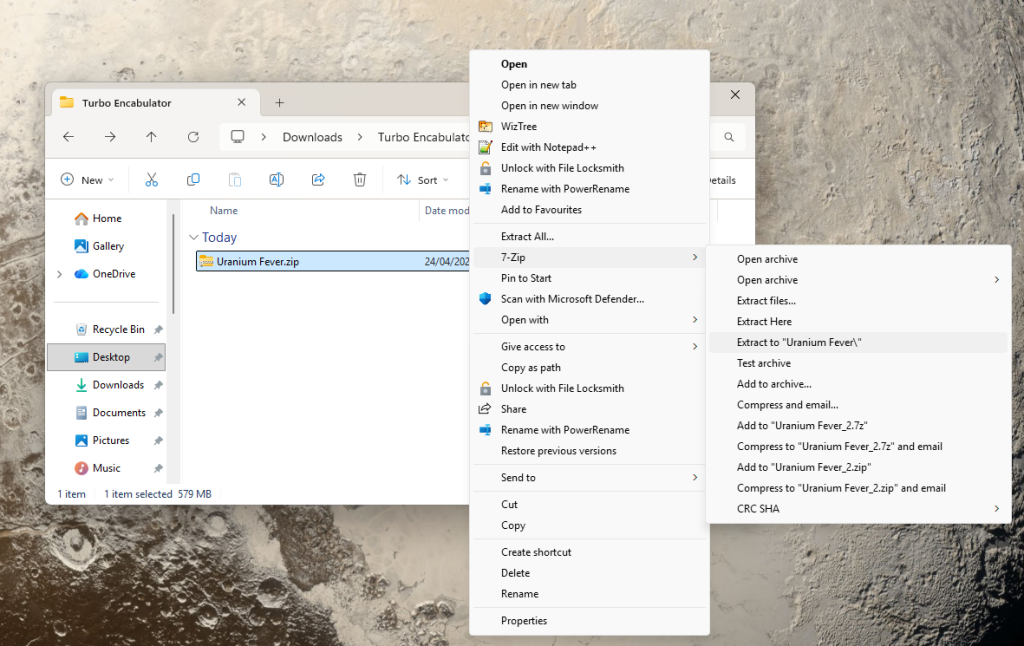
Then, in Prism Launcher, open the pack Folder.
In the pack folder, delete the following:
- libraries
- patches
- mmc-pack.json
(note that in case you do not have “Show file extensions” enabled on your system, ‘mmc-pack.json’ might show up as just ‘mmc-pack’)
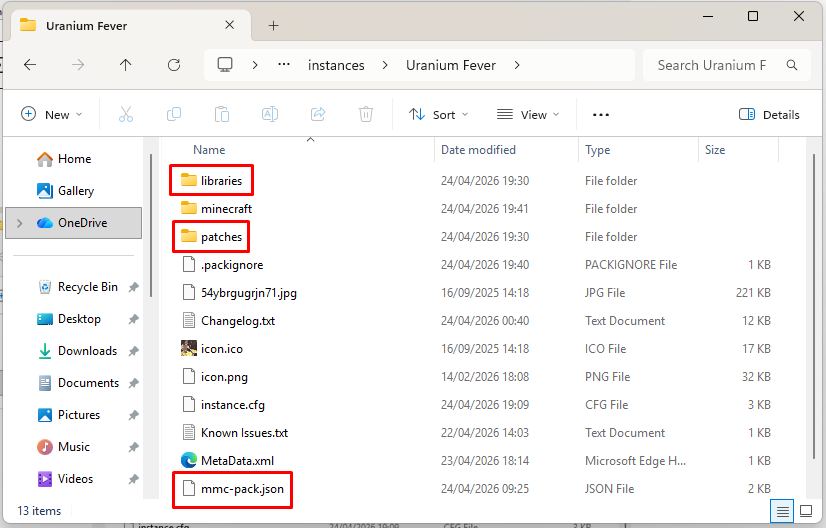
Then, using your preferred method, move / copy these 3 items from the Uranium Fever instance you downloaded and extracted earlier.
Then, navigate to the ‘minecraft’ folder inside your Uranium Fever installation.
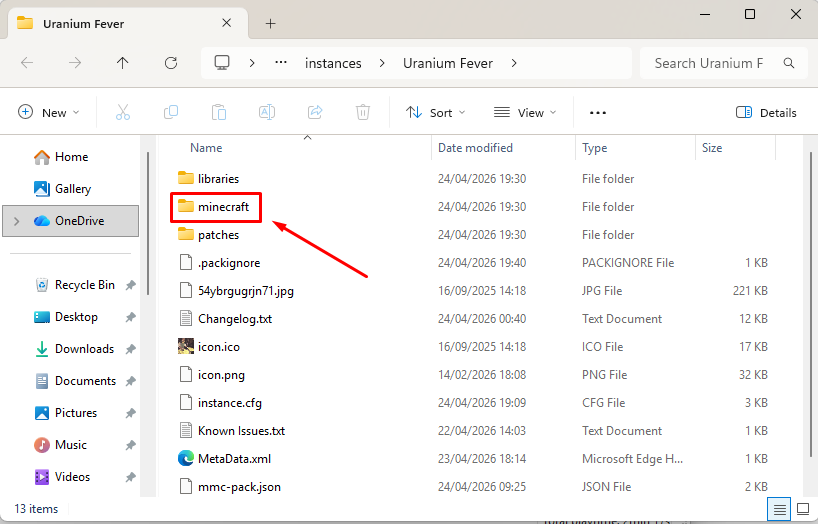
Once there, remove the following folders:
- config
- mods
- resourcepacks
- scripts
- serverutilities
- shaderpacks
(This will remove any resourcepacks / shaderpacks you’ve added yourself, as well as undoing any changes you’ve made to config files.
Please merge these folders / changes yourself if you wish to preserve these customization.)
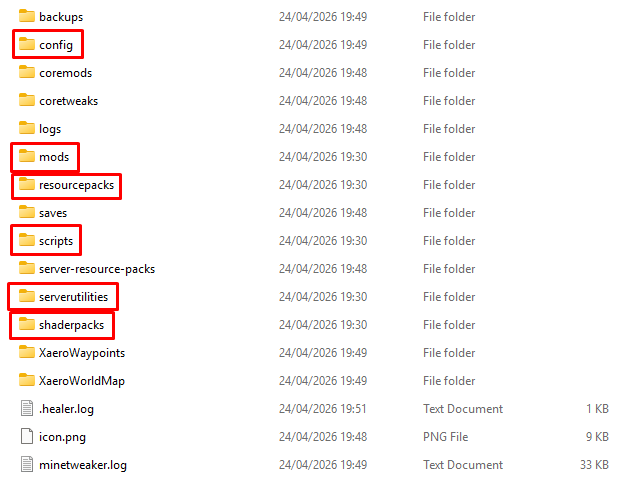
Replace them with the equivalent folders found inside of the ‘minecraft’ folder inside the Pack Instance you extracted earlier.
You are now ready to continue playing, and can delete the downloaded .zip file and the extracted Uranium Fever Pack Instance.
Please note that after certain updates, manual actions not specified in this guide might have to be performed to be able to play again.
Refer to the special instructions listed on the Downloads page when applicable.